
SiteLang Guide
WooCommerce Checkout Translation: Fix Untranslated Fields and Buttons
A clearer checkout
Trace each untranslated label to its source, distinguish Classic and Block Checkout, and test the fix through a safe order.
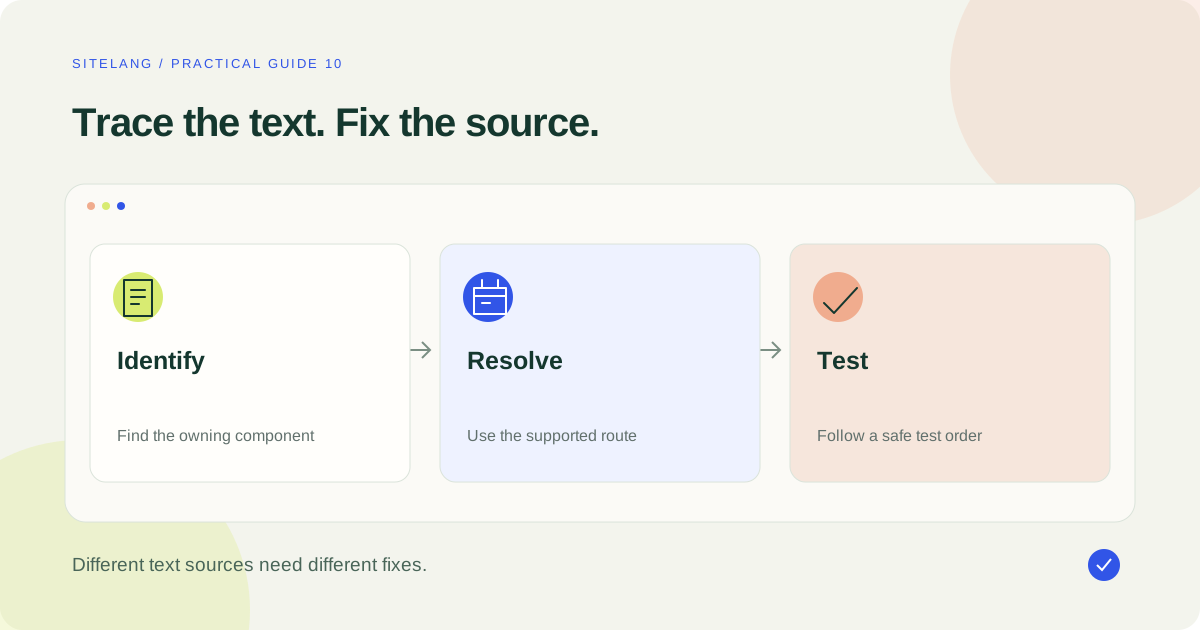
To fix WooCommerce checkout translation, identify the checkout type and the component that owns the text. Core language packs, saved settings, custom fields, JavaScript components, and remote payment screens need different checks. Reproduce the issue on staging and validate the complete test-mode order afterward.
- Classify the source before replacing a string.
- A Classic Checkout snippet does not establish support for the Checkout Block.
- Test errors, payment handoff, confirmation, and emails—not only the first screen.
Start with a five-minute diagnostic
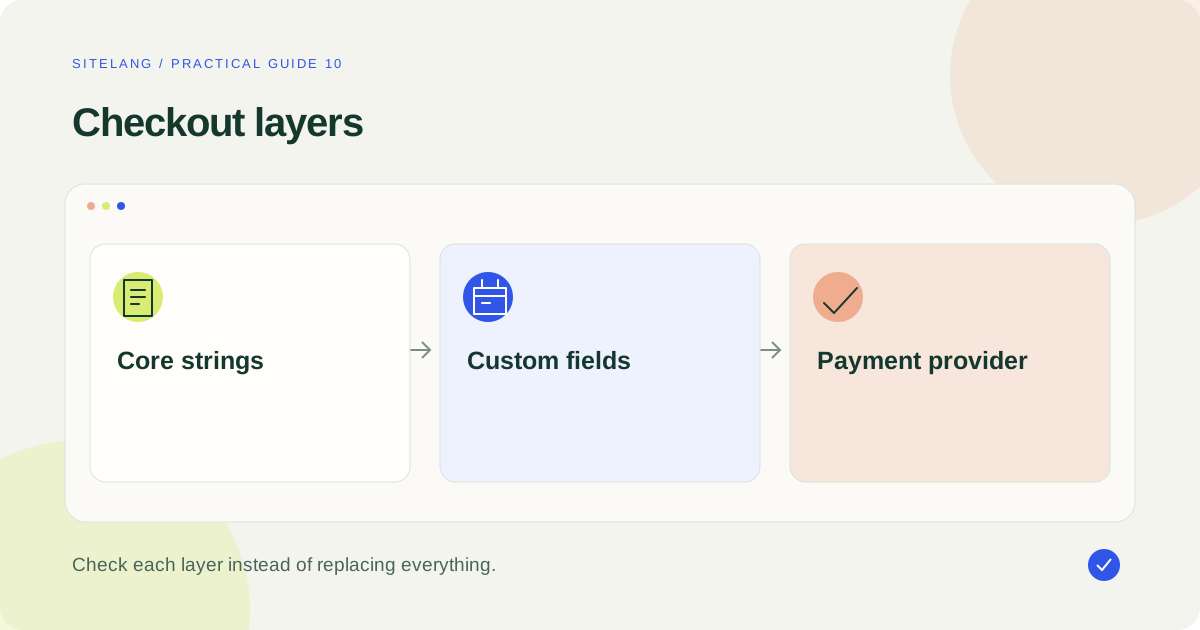
WooCommerce checkout translation problems often look similar but have different causes. A field label may come from a language pack, a saved setting, a custom extension, a browser-rendered component, or a remote payment interface. Replacing visible text without locating the source can fix one screen while leaving the actual workflow inconsistent.
Before changing anything, write down the page URL, selected language, exact untranslated wording, and when it appears. Note whether the customer is logged in, whether the issue happens after changing shipping or payment, and whether it appears on mobile as well as desktop.
- Confirm whether the page uses Classic Checkout or the Checkout Block.
- Identify the field, button, error, or payment component containing the text.
- Check which plugin, theme, saved setting, or provider owns it.
- Reproduce the problem in a staging or test environment.
- Make one targeted change, then repeat the relevant journey.
Do not make a live payment to test a translation fix. Use the gateway’s documented test environment and keep customer emails isolated from your test orders.
Identify Classic Checkout versus the Checkout Block
Open the checkout page in the WordPress editor and inspect its content. A traditional shortcode-based page and a block-based checkout use different extension mechanisms. The visible form can appear similar while its fields and messages come from different rendering paths.
Record the checkout type before applying instructions. A PHP filter documented for Classic Checkout is not proof that it controls a corresponding block field. Conversely, a block extension API is not a universal way to alter a traditional checkout.
Consult the official additional-fields documentation when dealing with custom Block Checkout fields. If an extension supplies the field, check that extension’s current compatibility and localization guidance rather than rebuilding its field in parallel.
A theme override or third-party checkout builder adds another layer. Identify it explicitly in the issue report. “WooCommerce checkout” is a page purpose, not enough information to choose the correct API.
Find out who owns the untranslated text
| Text type | Likely source | Next check |
|---|---|---|
| Standard WooCommerce label | Core software translation | Active locale and available language files |
| Custom shipping or payment title | Saved settings | The owning method’s title/description fields |
| Additional checkout field | Extension registration or custom code | Checkout type and field localization support |
| Validation message | WooCommerce, browser, or extension | The action and component producing the error |
| Remote payment window | Payment provider | Supported locale configuration and integration |
| Privacy or consent wording | Store settings, theme, or consent tool | The original saved content and language route |
Inspect the field’s surrounding component and reproduce the event that creates the message. A validation error may not exist in the initial HTML. A payment window can be hosted elsewhere and outside the translation plugin’s page-content controls.
Keep your diagnosis narrow. An untranslated field does not automatically mean that every page mapping is wrong. Similarly, changing the entire site’s default language may hide one symptom while altering the source-language store experience.
Check the locale and software translations
WooCommerce’s localization documentation explains the role of site language and available language packs. On a single-language configuration, verify the intended locale and available translation updates. On a multilingual site, also verify how the active language is established for the checkout request.
Do not confuse administrative language with the visitor’s selected language. An editor can work in one interface language while the customer sees another. Inspect the public checkout while logged out and follow the actual language-specific route.
If a core phrase is missing from an available translation, investigate the correct localization mechanism. Use WordPress’s localization guidance to understand language files and text domains. Keep custom translations in a location that survives ordinary plugin updates rather than editing WooCommerce’s distributed core files.
These steps concern software strings. A custom product description or a shipping-method title saved in the database may need a separate content or settings workflow.
Review shipping, payment, and other saved labels
Some phrases are merchant-authored settings rather than standard language-pack strings. A store may have saved “Local pickup” or a custom payment instruction during its initial configuration, then later changed the site language. Inspect the saved title and description in the method that owns them.
For a single-language store, editing that method’s saved wording may be appropriate. In a multilingual store, changing one global field to French may replace the English text for everyone. Use a documented per-language integration where available and test both source and target checkouts afterward.
Review privacy statements, additional instructions, delivery estimates, and extension notices using the same ownership approach. Avoid global replacements that change unrelated text across the entire site.
The extension-translation guidance is a useful starting point, but the exact extension still matters. A localization-ready extension and a fully validated multilingual customer journey are different claims.
Handle custom fields through the correct implementation
If a custom field is supplied by an extension, start with its supported translation controls. Keep the field’s machine-readable identity separate from its visible label. Changing a stored key or option value can alter business logic rather than simply translate text.
For Block Checkout development, WooCommerce documents a dedicated additional-field registration route with localized labels. The field’s location, optional text, validation, and saved values must be handled through that implementation. Read the official field tutorial before adapting code.
This guide deliberately does not supply a universal gettext snippet. Such a snippet would not establish that all block content, dynamic errors, custom extension settings, or remote provider text are covered. A narrow fix should identify its checkout type, text domain or API, and tested scope.
Ask a developer to preserve sanitization, validation, permissions, and update compatibility when altering custom registration code. Translation should not remove the checks that make a field safe and useful.
Localize remote payment interfaces with the provider
An embedded frame, hosted checkout, or payment overlay may be rendered by the payment provider. The surrounding WordPress page cannot be assumed to translate it. Identify whether the integration passes a supported locale and how that locale is selected.
Use the exact provider and gateway documentation for this step. Do not guess a locale parameter or promise that a translation plugin can rewrite cross-origin payment UI. The provider may support only a subset of your site’s languages or may choose a fallback according to its own rules.
Test the handoff, return URL, cancellation, and failure states. A translated checkout page can still return the customer to a source-language confirmation if those transitions are configured independently.
Keep test card numbers and credentials out of published screenshots. Use provider-approved test data privately and only a sanitized result when documenting the language issue.
Check language persistence and cache behavior
Follow a target-language product to the cart, then checkout. Change quantities, apply a valid test coupon, select a shipping method, and change payment choice. Observe whether the language remains appropriate through those interactions.
Review cache exclusions and session handling with the store’s documented stack. Cart, checkout, account, and personalized state require special care; a generic cache purge is not a permanent configuration fix. A page cached in the wrong language can make correct translation settings appear broken.
In the inspected SiteLang source, language routing and WooCommerce integration are separate from ordinary product text. Validate their behavior on your installed setup. No blanket claim of compatibility with every checkout extension is made here.
Also inspect the language-switcher behavior. A selector that loses the current route or sends shoppers to an unrelated page can create a navigation problem that resembles a translation failure.
Make the support report reproducible
A useful checkout issue report describes a sequence another person can repeat. Start from the target-language product URL, name the product type, state the customer status, and identify the payment method selected. Then describe the action that causes the untranslated text to appear.
Include the exact phrase and expected language. If the issue occurs only after an address change or failed payment, say so. A static screenshot of the first checkout screen will not capture a problem that appears only after a dynamic update.
List the checkout type and the versions of WooCommerce, the translation plugin, theme, checkout builder, and relevant gateway or field extension. Keep the report focused on the components that own the affected text. Include any targeted change already tested and whether it affected both source and target languages.
Use fictional customer details and redact account identifiers, secrets, and payment data. A concise sanitized reproduction helps the responsible team investigate the right layer. It is more useful than a long list of unrelated plugin settings or a claim that every untranslated phrase must have the same cause.
Finish with a controlled order test and a useful issue report
| Dimension | Example case | Initial status |
|---|---|---|
| Checkout type | The store’s actual Classic or Block implementation | Not tested |
| Language | Source and each published target | Not tested |
| Customer state | Guest and signed-in customer where supported | Not tested |
| Payment | Each enabled method in documented test mode | Not tested |
| Device | Desktop, narrow mobile, and keyboard navigation | Not tested |
| After purchase | Return page, confirmation email, account/download access | Not tested |
Make one complete safe test order for the relevant language/payment combination. Confirm the purchased item and totals, then inspect the resulting confirmation and email. Do not report a general pass if only the initial labels were checked.
If the issue remains, provide a short reproduction: versions, checkout type, language, exact phrase, component owner, expected result, and a sanitized capture. List the targeted changes already tried. That gives the responsible developer or support team a useful case without exposing private customer or account information.
Use the full multilingual store guide to check the wider journey and the bulk product guide for catalog content. Treat checkout translation as a specific integration task with measurable tests, rather than a promise that one plugin can replace every text source.
Good questions. Clear answers.
Why do some checkout labels remain in English?
They may come from different sources: core translations, saved settings, custom extensions, browser feedback, or a payment provider. Identify the source before choosing a fix.
Can I use the same snippet for Classic and Block Checkout?
Do not assume so. Their extension mechanisms differ. Use instructions documented for the actual implementation and validate the result.
Can SiteLang translate a remote payment overlay?
Do not infer that from product-page translation support. Check the gateway/provider locale settings and the actual integration.
What evidence should I send to support?
Include versions, checkout type, selected language, exact text, reproduction steps, expected behavior, and a sanitized screenshot or message. Exclude secrets and customer/payment data.
Sources & further reading
Sources checked 25 October 2026. Document-based guidance; your installation and integrations require their own tests.