
SiteLang Guide
How to Add a Language Switcher to WordPress: Menus, Headers and Mobile
Language navigation
Choose a clear placement, connect equivalent pages, and make language selection comfortable on desktop and mobile.
Add a WordPress language switcher through a supported block, shortcode, builder widget, or theme placement. Use real links to published language versions, label the choices clearly, and test keyboard and mobile behavior. The switcher navigates between translations; it does not create them.
- Connect equivalent pages instead of sending every choice to a homepage.
- Use readable labels; flags are optional country cues.
- Test focus, clipping, long names, and open mobile menus.
What a WordPress language switcher should do
A WordPress language switcher gives visitors a way to choose an available language version of the content they are viewing. Its basic job is navigation. It should help a visitor recognize the choices, understand the current language, and reach a useful destination without losing their place.
The control is not a translation engine. Adding a dropdown to an English-only site does not create a French services page or establish an indexable French URL. Prepare the content first, then make the selector reflect the language versions that are actually ready.
A small, thoughtful control is usually more useful than a large decorative flag bar. The right design depends on the available space, number of languages, and the way your visitors use the site. Start with those requirements rather than selecting a preset solely because it looks attractive in an admin preview.
Choose a placement that visitors can find
Header placement makes the choice visible early. Footer placement can provide an additional route on longer pages. A floating control can help when a theme has limited insertion points, but it must not overlap chat, cart, cookie, or accessibility controls.
| Placement | Useful when | What to test |
|---|---|---|
| Header dropdown | Several languages need a compact control | Clipping, long labels, keyboard focus |
| Inline choices | Two or three options fit comfortably | Wrapping and current-language state |
| Navigation menu | The theme has a supported insertion route | Desktop and mobile menu behavior |
| Footer | You want a consistent secondary location | Discoverability and repeated navigation |
| Floating control | A supported floating placement solves a real layout need | Overlaps, screen edges, safe mobile spacing |
Do not assume that a desktop menu item automatically appears correctly inside a mobile drawer. Themes often render a different navigation structure for phones. Open the drawer and test the complete interaction, including the selector’s dropdown.
Keep one primary language control per location. Duplicate controls with contradictory states make navigation harder to understand, especially if one goes to equivalent pages while the other goes to homepages.
Prepare the language destinations
Publish a representative translated page before placing the control. Open the source and target pages in separate logged-out windows, then note the actual URLs. Confirm that each contains the expected main content.
Test a deep page, not only the homepage. If a visitor chooses French on a product page, a French version of that product is usually the most useful destination. When no translation exists, use the plugin’s documented fallback and a clear editorial policy rather than making a broken link.
Decide which languages appear during a staged release. An incomplete language may be appropriate for private review but misleading in public navigation. Make the switcher reflect available content and check its behavior after a translation is unpublished.
Add the SiteLang switcher through a supported route
The inspected SiteLang release provides a shortcode, a block, an Elementor widget, and supported theme-hook placement. Use the route that matches the component you can actually edit. The official plugin information identifies these placement options.
Use a shortcode-capable location
Insert the following into a WordPress Shortcode block or another location documented to process shortcodes:
Preview the page and open the public result. A normal navigation-item URL field is not automatically shortcode-capable; it may display the raw text instead. Use a supported block, widget, builder integration, or theme route for the header.
Use a block or Elementor widget
Search for the SiteLang Switcher block in the editor, or the supplied switcher widget in Elementor. Place it inside the relevant page or supported template. For header work, confirm that the theme or builder template you are editing actually controls the live header.
Configure the display
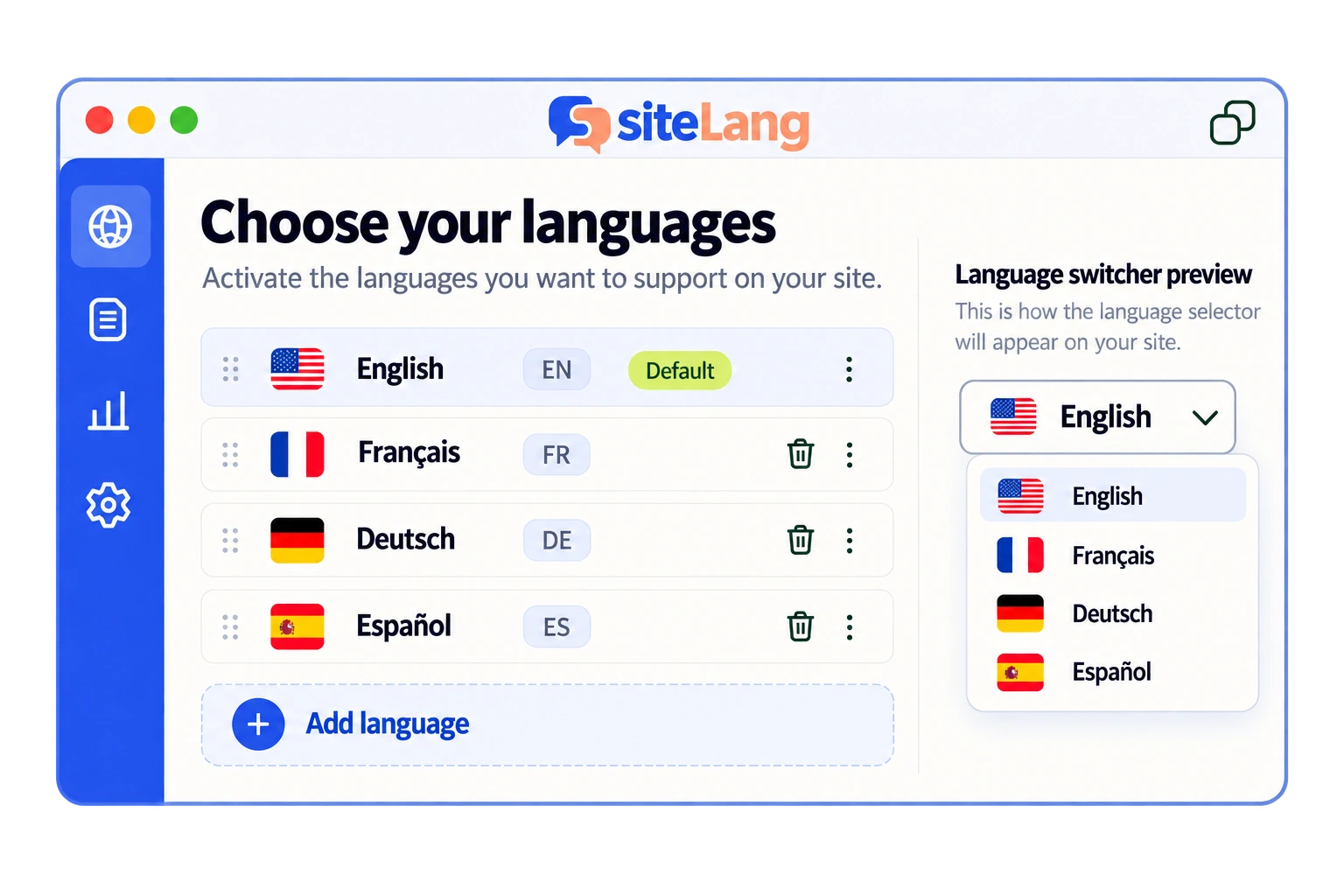
In SiteLang’s switcher/display settings, the inspected source includes a preset gallery, dropdown or direct horizontal choices, native-name and flag controls, colors, and desktop/mobile placement options. Save the chosen settings, then inspect the frontend rather than relying only on the studio preview.
Theme-hook rendering and the mobile navigation row are explicit settings in that source. They should not be assumed to be enabled merely because a visual preset was selected. Developers using a PHP helper should follow the documented theme integration and escape/output expectations instead of pasting PHP into a post editor.
Make the labels understandable
Use labels visitors can recognize even when they do not understand the current page. Native names such as English and Français are often clearer than an unexplained code. A compact EN or FR trigger can work when the expanded options show the full names.
Flags are optional. A language is not a country, and a country may use several languages. If you include flags, use the site’s deliberate language-to-region mapping and preserve authentic colors. Do not guess a country from a language code or use flags as the only label.
Show the current language clearly. A visible text state or check mark can supplement color. Avoid making the current choice look disabled in a way that prevents a user from understanding it. For large language sets, consider how long names, ordering, and scrolling affect the dropdown.
Use the SiteLang visual style without reducing usability
The supplied design uses a restrained flag-and-label trigger, a thin chevron, a white dropdown, a neutral border, and a soft shadow. Pale blue hover states and forest-colored text keep the control consistent with the rest of the page.
Use that visual identity as a baseline, not a reason to make interactive areas tiny. Increase the trigger and row padding where needed, especially on touch devices. Keep focus outlines visible and avoid putting a low-contrast lime or apricot label on a white background.
Let the popup align within the viewport at the left and right edges. Check the surrounding header for overflow clipping. A high z-index does not fix a dropdown that an ancestor clips; the structure and overflow rules need to be understood.
For a builder header, the Elementor guide explains template and responsive checks. Use styling scoped to the switcher rather than changing every select or navigation link on the customer’s site.
Test keyboard access and disclosure behavior
Language options are navigation links. A disclosure button can reveal them, with an expanded state that matches the visible dropdown. Native links should remain links; turning the whole component into an imitation application menu can introduce unnecessary keyboard expectations.
The W3C disclosure-navigation example explains why ordinary navigation does not require ARIA menu roles. Use native elements wherever practical and test the complete interaction rather than adding ARIA attributes by appearance.
- Tab to the trigger and open it with Enter or Space.
- Tab through the language links in a logical order.
- Confirm a visible focus indicator on every interactive element.
- Press Escape to close the dropdown and restore focus appropriately.
- Move focus outside and check that the open popup does not linger over unrelated content.
- Test a second switcher independently if the page has one.
Also test without a mouse and with reduced-motion preferences. Any animation should be optional decoration; it should not be necessary to read the choices or reach the destination.
Check mobile and right-to-left layouts
Open the mobile header at a narrow width, then open the navigation drawer and the language choices. Confirm that the dropdown stays visible, the page remains scrollable, and choosing a language does not activate an unrelated menu control.
Use a long native language name as a stress test. Check whether text truncation hides the very information visitors need. If the trigger uses a compact code, make the expanded list clear. Do not shrink the entire header’s typography just to preserve an exact desktop composition.
For right-to-left languages, inspect alignment, punctuation, labels, and the direction of mixed-language content. Icons that indicate layout direction may need deliberate handling, while authentic flags should not be mirrored or recolored.
Troubleshoot the destination before restyling the control
| Problem | Check first | Useful next action |
|---|---|---|
| Every option goes to a homepage | Published equivalent-page mappings | Verify the content relationship and fallback policy |
| Raw shortcode appears | Whether the insertion point processes shortcodes | Use a supported block/widget/template route |
| Popup is cut off | Ancestor overflow and viewport alignment | Adjust the component layout, not only z-index |
| Wrong language persists | Actual destination, cache, and session behavior | Test logged out and inspect language-specific caching |
| Mobile control is missing | Separate mobile markup and enabled placement | Use the theme’s documented mobile integration |
Finally, follow each choice and inspect the target page’s content and URL. A beautiful control cannot compensate for an incomplete destination. See the multilingual SEO guide for language URLs and the WordPress setup guide for creating the underlying translations.
Good questions. Clear answers.
Does a switcher translate my website?
No. It lets visitors navigate available language versions. Content creation, language URLs, and review belong to the translation workflow.
Should I use flags or language names?
Readable language names are the clearest baseline. Flags can be optional cues when the language-to-region mapping is deliberate, but they should not be the only identifier.
Can I paste the shortcode into any menu field?
No. The location must process shortcodes. Use a documented block, builder widget, theme hook, or other supported integration.
Should the selector automatically redirect visitors?
Give people a reliable manual choice. Automatic language assumptions can prevent access to the version someone wants and should not replace crawlable language navigation.
Sources & further reading
Sources checked 25 October 2026. Document-based guidance; your installation and integrations require their own tests.