
SiteLang Guide
How to Translate an Elementor Website Without Changing Its Design
Built with Elementor
Keep your layout familiar while reviewing translated text, reusable templates, responsive behavior, and language navigation.
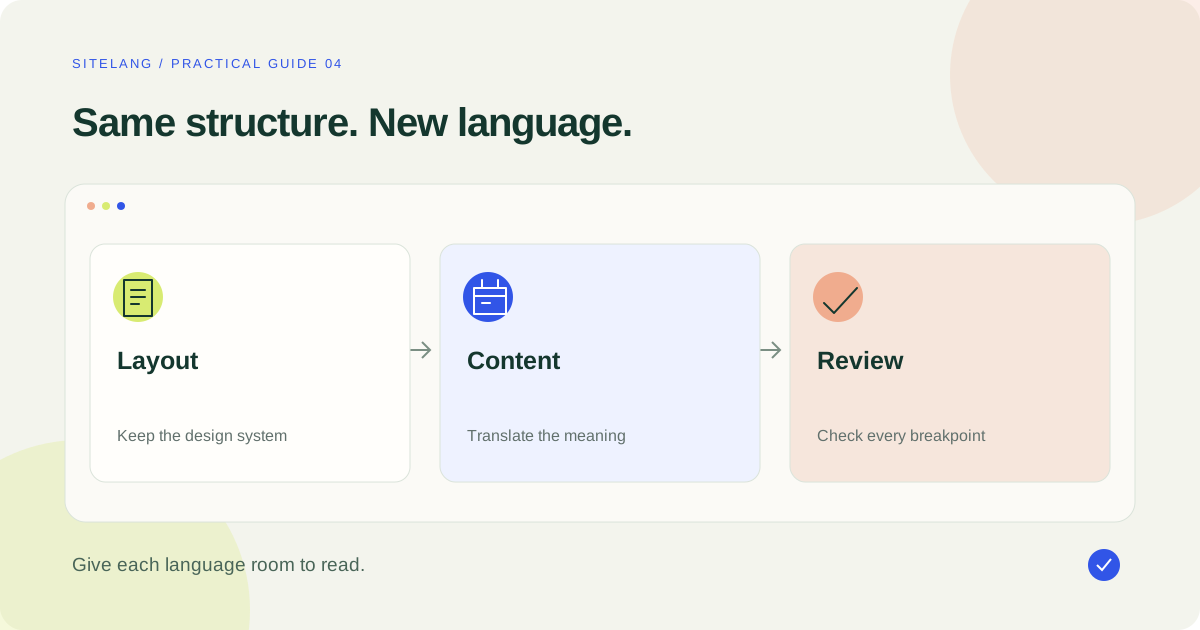
Translate the content through a workflow that understands Elementor’s stored fields, then review the actual translated page. Keeping the original layout is achievable, but longer wording, font coverage, reusable templates, and right-to-left content can still need deliberate adjustments.
- Use the supported builder-content workflow rather than editing rendered HTML.
- Inventory templates and dynamic content before translating pages.
- Review each language on desktop and mobile; text length changes layout.
Preserve the structure, then test the language
To translate an Elementor website without rebuilding it, separate the layout structure from the words it displays. Containers, spacing, colors, and widget settings form the design. Titles, text, links, labels, and image choices form part of the language experience. A suitable integration should help you edit the second group without casually rewriting the first.
That does not mean every translation will fit the original dimensions. A short English button can become a longer French phrase. A German heading may wrap differently. An Arabic page needs correct direction and a font that covers the script. “Preserve the design” should mean maintaining a usable, recognizable system, not forcing every language into the same number of pixels.
This guide combines a documented SiteLang route with an original layout-review method. It does not claim that every Elementor add-on or your specific theme was tested. Treat the review checks as acceptance criteria for your installation.
Inventory the Elementor content behind the page
Start with one representative page and identify where each visible element is stored. A page may combine its own widgets with a Theme Builder header, a footer template, a popup, a global element, a form, and dynamic data from custom fields. Translating only the page record may leave those other sources unchanged.
| Element | Where to look | Review question |
|---|---|---|
| Page title and copy | The page’s Elementor document | Does the supported editor expose the visible text? |
| Header and footer | The owning theme or template | Which language/template conditions apply? |
| Popup or global content | The reusable document | Is the source shared across several pages? |
| Dynamic values | Custom fields, products, or another extension | Is the value text, a reference, or structured data? |
| Form messages | The form widget or service | Are labels, errors, and success messages included? |
Back up your site and use staging before changing shared documents or display conditions. Record the theme, Elementor version, Elementor Pro status, and third-party add-ons. These details are useful if a particular field does not appear in the translation editor.
Do not assume that an integration with a similarly named tool is interchangeable. For example, WPML’s Elementor instructions describe WPML’s own workflow. They are not SiteLang menu instructions.
Create a linked translation with SiteLang
The inspected SiteLang 1.1.8 source includes Elementor integration and a manual editor that collects supported builder text fields. Use the normal linked translation workflow first so that the target page belongs to the intended language.
- Configure and save the source and target languages in SiteLang → Languages.
- Open SiteLang → Translations, select the target language, and choose the appropriate page or supported template content type.
- Locate the original and create a manual translation draft. Open an existing linked translation when one already exists.
- Review the available content fields, including the supported Elementor text group. Translate wording while preserving structural markup and protected values.
- Use Save and preview, then inspect the translated draft and its language context.
- Publish the translation only after the content and layout review are complete.
These steps are based on public release evidence, not a live session in your WordPress admin. Check your installed version if labels differ. The main WordPress guide explains the initial setup in more detail.
Managed AI is an optional route for an eligible connected account. It is not a prerequisite for local manual translation. Before submitting a larger builder document, test a representative sample and check the returned content rather than equating a completed job with an approved page.
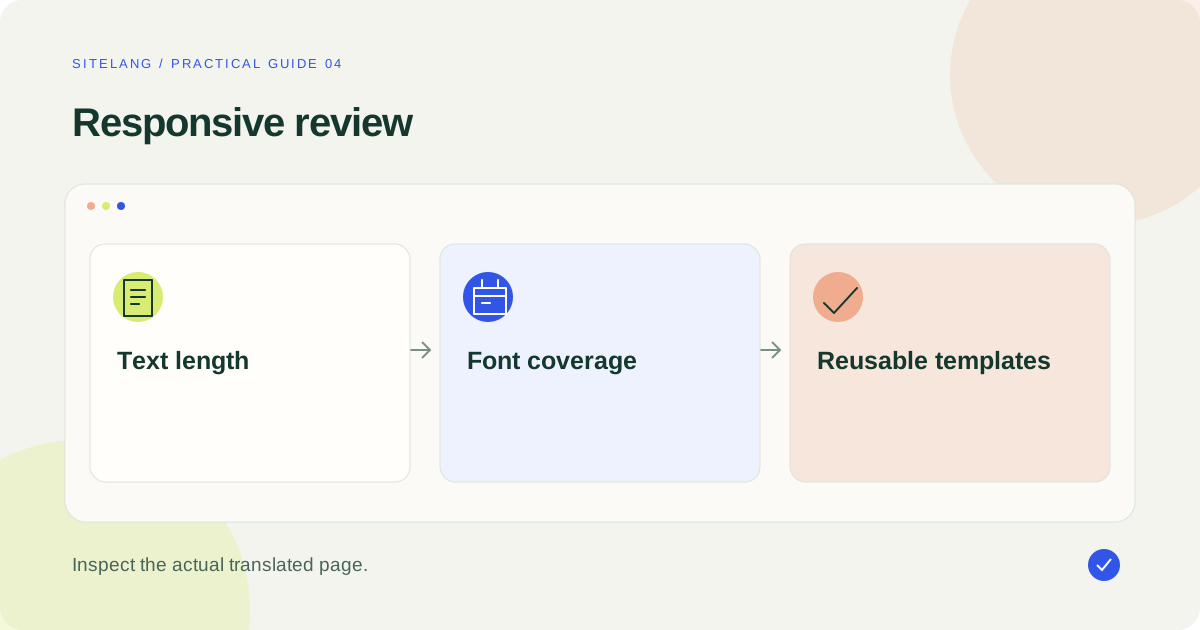
Review text expansion before shrinking the font
When translated text overflows, first inspect the layout constraint. A fixed-width button or fixed-height card may be the real problem. Reducing the font size until the text fits can make one language harder to read without solving the underlying design issue.
Prefer layouts that tolerate natural wrapping. Let buttons grow when space permits, align cards without clipping their content, and give navigation enough room. Preserve the hierarchy between a heading, a description, and the next action. Ask a reviewer to shorten wording only when the alternative retains the intended meaning.
Elementor’s responsive editing documentation is useful for reviewing device-specific settings. Check the actual rendered language page as well as the editor preview, because the live theme, browser font rendering, and dynamic content can change the result.
| Test | What to inspect | Preferred first response |
|---|---|---|
| Longer German heading | Wrapping, card height, overlap | Allow sensible wrapping and flexible height |
| Long French action label | Button width and neighboring controls | Adjust spacing and review concise wording |
| Arabic content | Direction, alignment, glyph coverage | Use an appropriate script font and RTL-aware layout |
| Long native language name | Header and mobile selector | Give the control adequate width or a deliberate compact mode |
These are suggested QA scenarios, not a claim that a particular plugin has been tested with all of them. Use the languages your site actually intends to publish.
Treat dynamic content and missing strings carefully
A missing sentence may be stored in a widget setting, a custom field, a product attribute, a reusable template, or an add-on’s own data. Find that source before copying text into another field. An improvised replacement can look correct today and become disconnected when the source changes.
Record the widget name, source document, field, and language. Check whether the current integration exposes that field. If it does not, investigate a documented integration or a manual route in the owning tool. Avoid claiming unsupported custom widgets are universally translated because ordinary text widgets work.
Protect dynamic values such as URLs, IDs, placeholders, and machine-readable attribute keys. Translate the human label when appropriate; keep the data relationship intact. For a product widget, verify the selected product and variation rather than reading only the visible title.
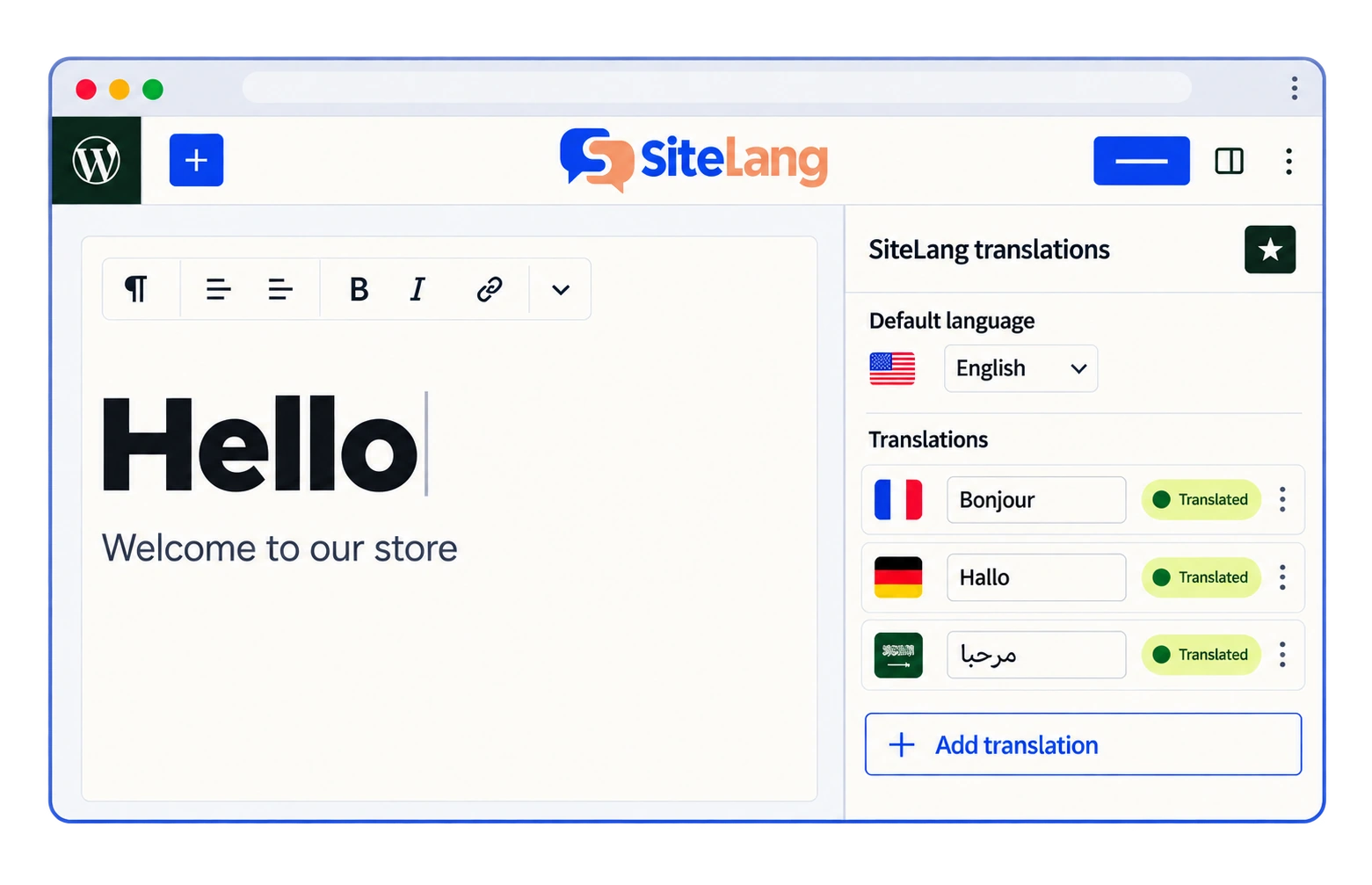
Check metadata, links, and real published output
Translate the page’s search title and description through the supported SEO fields. Review links inside buttons and rich text: the destination should be the relevant language equivalent when it exists, not an obsolete draft or an unrelated homepage.
Open the public target-language URL while logged out. Check navigation and the page’s canonical and language relationships through your SEO setup. The multilingual SEO article explains how to inspect these outputs without adding duplicate tags.
Do not confuse changing Elementor’s software language with translating your content. Elementor’s language-setting guidance concerns its interface and available translations. Your original copy and template content still need a content workflow.
Give the reviewer a layout-aware brief
A language reviewer can help preserve the design if the brief includes context. Provide the source page, the intended audience, approved terminology, and the purpose of each important action. Explain where a phrase is a heading, button, menu label, or longer explanation rather than sending a disconnected list of strings.
If space is constrained, ask for an accurate concise option and a preferred natural version. Do not impose the source character count as an absolute rule. A slightly longer phrase can be the correct wording, and the layout may need to accommodate it.
Review the translation in its actual visual position. A pronoun that is clear in an isolated paragraph may become ambiguous beside a reordered card or image. A link label should still explain the destination when read independently by a keyboard or screen-reader user.
Keep layout adjustments intentional and reusable. If several cards fail with longer text, correct the shared component instead of applying a one-off negative margin to each translation. Record the language-specific exception only when it is a genuine editorial or typographic need. This gives future pages a consistent starting point and reduces the chance that the next content update recreates the same overflow.
Diagnose visual issues and finish the review
| Symptom | Check first | Next step |
|---|---|---|
| Source text remains | The owning widget/template or dynamic field | Use its supported translation route |
| Wrong header language | Template relationship and display conditions | Correct the language/template assignment |
| Text overlaps | Fixed dimensions, wrapping, and margins | Make the layout tolerant of the target wording |
| Old version appears | Saved draft, generated styles, and cache layers | Confirm the save, then refresh appropriate caches |
| Form feedback is untranslated | The widget, extension, or remote service | Translate the component that owns the message |
Finish with a native-language read-through at desktop, tablet, and phone widths. Follow every key action and inspect the destination. A page that looks good at the top can still contain a clipped form or an untranslated footer farther down.
Keep this review sheet for the next source update. Reusable templates and dynamic content make maintenance easier only when their language relationships remain understandable. If you evaluate SiteLang, use the current release information and your own staging tests to decide whether it covers the Elementor components that matter to your site.
Good questions. Clear answers.
Can I keep the same Elementor layout in another language?
Often you can preserve its structure, but translated text, font coverage, and direction still need visual checks. Avoid fixed dimensions that depend on one exact wording.
Does Elementor’s interface language translate my pages?
No. Changing the interface locale and translating your authored page content are different tasks.
Do I need Elementor Pro to place any language switcher?
Not necessarily. Available routes depend on your theme and translation plugin. Elementor Pro is relevant to its Theme Builder workflow, while other page, block, shortcode, or theme placements may exist.
Why is a custom widget missing from the translation editor?
Its text may be stored in a field or external data source the integration does not expose. Identify the widget and field, then check documented support rather than assuming all widget data is covered.
Sources & further reading
Sources checked 25 October 2026. Document-based guidance; your installation and integrations require their own tests.